
Version: Business Enterprise Advanced
Platform: Web Android IOS
Role: User Manager Accountant Administrator
Until now, online purchase validation was carried out by entering a dedicated password and receiving a validation code via SMS. Today, to streamline the use of your card and optimize its functionality, you have the option to set up validation via biometrics.
1) What is biometrics?
Biometric validation in N2F is a secure authentication method that allows a cardholder to confirm a payment directly through the app using a biometric data provided by their mobile device, for example:
- Fingerprint (Touch ID, Android fingerprint sensor)
- Facial recognition (Face ID, Face Unlock)
- Unlock pattern
N2F never stores any biometric information: the app simply uses the security system built into the phone.
By enabling this feature, neither the password nor the SMS validation code will be required.
2) How to enable the feature?
Prerequisite: Make sure that notifications are enabled in your smartphone settings > Apps > N2F > Permissions.
To set up payment validation via biometrics, you need to log in to the mobile application: How to download the mobile app?
Go to the "My N2F Cards" menu, accessible from the app's main menu. If this is your first time logging in, email authentication will be required.
Select the card on which you want to enable the biometric authentication method.
Click the "Edit Authentication" button, then follow the instructions provided.
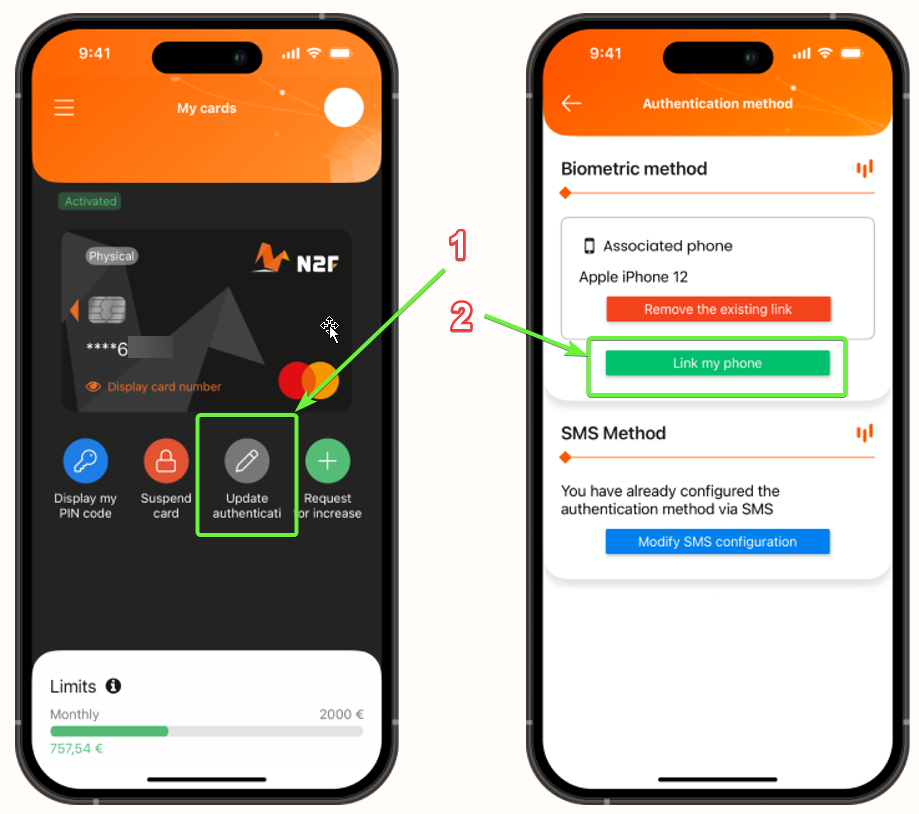
You will be able to confirm that your mobile device is properly configured. You can remove the pairing at any time, in which case payment validation will revert to using a password and SMS code.
If you want to pair another mobile device, you can click on "Link My Phone."
Note: Only one mobile device can be paired at a time; pairing a new device will automatically remove the previous one.
3) Why and how to use it?
Biometric validation provides enhanced security. It prevents any fraudulent use of your account.
It allows for instant validation and makes your experience smoother, offering greater convenience and speed during payments.
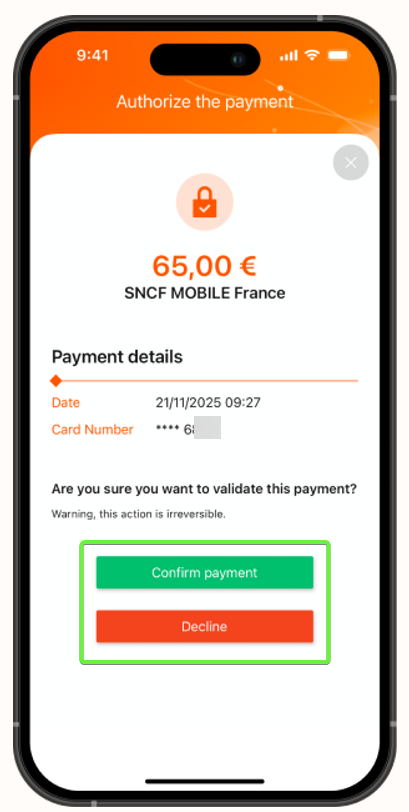
Specifically, during an online payment, you will receive a push payment notification. You will need to click on this notification to approve or decline the payment:
For more details or any additional questions, please contact our support team at the following email address:
support@n2f.com